


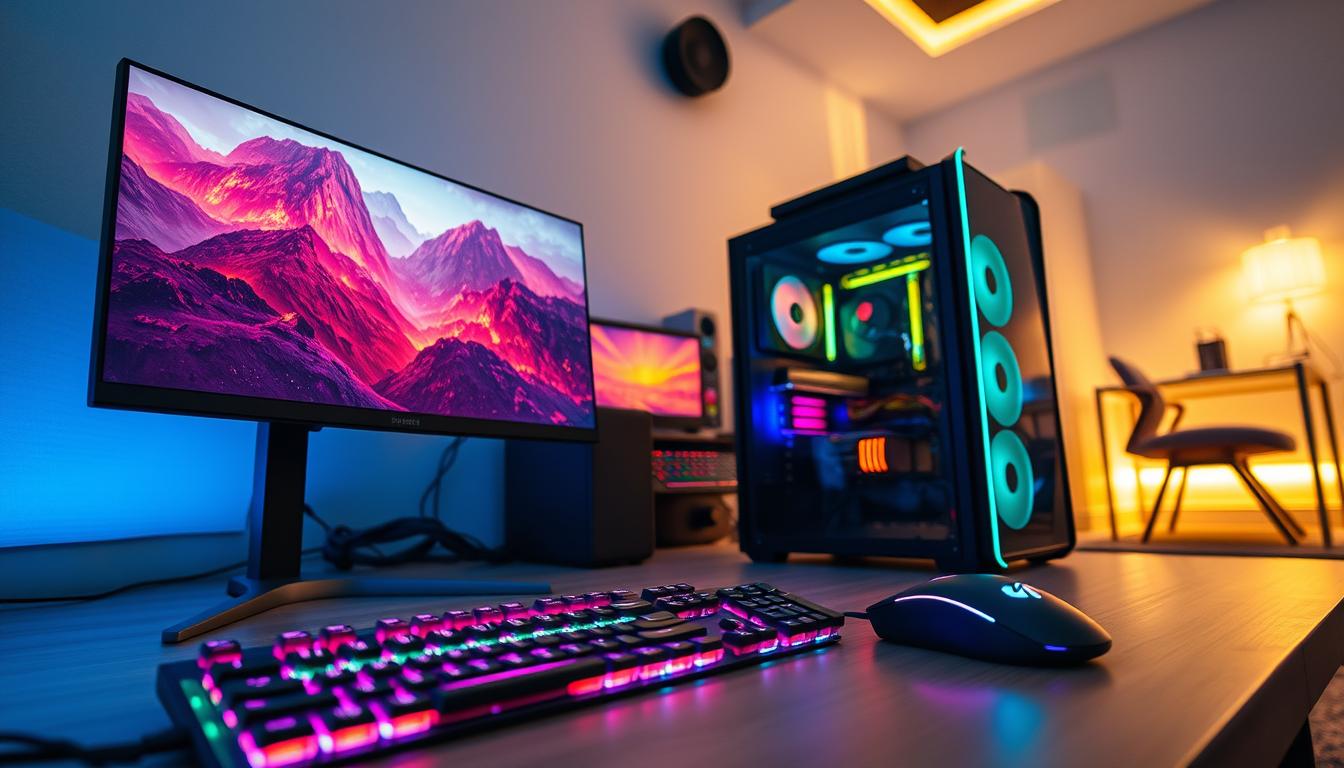
Best PC Settings for Smooth Gaming are essential if you want a lag-free and high-FPS gaming experience on Windows. To enjoy smooth gaming on a PC, it’s important to tweak the right Windows settings and properly optimize system performance.
By adjusting the right settings, gamers can make sure their PC works its best. This guide will show you how to set up your PC for the best gaming experience.
Key Takeaways
- Optimize Windows settings for a smoother gaming experience
- Configure PC settings to reduce lag and interruptions
- Enhance gaming performance with the right tweaks
- Improve overall PC efficiency for gaming
- Get the best possible gaming experience with optimized settings
Table of Contents
Best Windows Settings for Smooth Gaming
Smooth gaming on Windows needs more than just great hardware. It also requires optimized system settings. Gamers must tweak various Windows settings to get the best gaming performance.
These best PC settings for smooth gaming help increase FPS, reduce lag, and deliver a stable gaming experience on Windows.
Game Mode On or Off
Windows has a feature called Game Mode for better gaming. But, whether to turn it on or off depends on your system and the game you play.
With Game Mode on, Windows focuses on gaming by using resources better. This can make games run smoother, even in games that use a lot of resources.
But, some gamers find that turning off Game Mode can make games run better. This might be because the system manages resources differently.
To see if Game Mode helps you, try it both ways. Start with it on and see if your games run better. If not, try it off to see if it makes a difference.
Smooth gameplay settings can also come from other Windows tweaks. For example, keeping your graphics drivers updated is key for great gaming.
- Update your graphics drivers to the latest version.
- Adjust your power settings to prioritize performance.
- Disable unnecessary background applications.
Windows optimization tips from Microsoft show how system-level tweaks can significantly improve PC gaming performance on Windows.
Best Power Plan for Smooth Gaming on PC
To make your PC faster for games, setting up the power plan is key. The power plan settings on your Windows PC decide how your system uses resources. This can greatly affect how well your games run.
Windows has several power plans, like Balanced, Power saver, and High performance. For gaming, the High performance plan is best. It focuses on performance over saving power, so your PC runs its best while gaming.
To change your power plan, go to Power Options in your Control Panel. Pick the High performance plan if it’s there. If not, click on Show additional plans. Changing your power plan can really improve your gaming, making it smoother and faster.
By tweaking your power plan, you make sure your PC is set up for top gaming. This makes your gaming time more fun.
You May Also Like: How 5G Internet Works and Why It’s Faster Than 4G
Disable Startup and Background Apps
To have a smooth gaming experience, it’s key to turn off apps that start up automatically and run in the background. These apps can use up system resources, leading to lag and interruptions while you play games.
Turning off these apps frees up more resources for your games. This makes your gaming experience smoother. Here’s how to manage them:
Steps to Disable Startup Apps:
- Press Ctrl + Shift + Esc to open Task Manager.
- Navigate to the Startup tab.
- Right-click on apps you don’t need and select Disable.
Steps to Disable Background Apps:
- Go to Settings > Privacy.
- Select Background apps from the left sidebar.
- Turn off the apps you don’t need running in the background.

Managing startup and background apps boosts gaming performance and makes your system more responsive. The table below shows the benefits and steps:
| Action | Benefits |
|---|---|
| Disable Unnecessary Startup Apps | Faster system boot times, more resources for gaming |
| Disable Background Apps | Less memory and CPU usage, less lag during gaming |
By following these steps, gamers can have a more efficient and enjoyable gaming experience on their PCs.
Graphics Settings for Smooth Gameplay
To get the most out of gaming, setting up the right graphics settings is key. These settings greatly affect how good your gaming looks and feels. Tweaking them can make your gameplay much smoother.
Resolution and refresh rate are crucial in graphics settings. A higher resolution means clearer images but uses more power. A higher refresh rate makes things look smoother but needs a strong graphics card.
Resolution and Refresh Rate
Choosing the right resolution depends on your monitor and graphics card. You might pick 1080p, 1440p, or 4K. Make sure your hardware can handle it without lagging.
Refresh rates like 60Hz, 144Hz, and 240Hz also matter. Higher rates mean smoother action.
Other key settings include:
- Texture Quality: Better textures look nicer but can slow things down.
- Shadow Quality: Shadows add depth but can be hard on your system.
- Anti-Aliasing: It smooths out jagged edges for a better look.
Adjusting these settings to match your hardware’s limits can find a sweet spot. Some games have pre-set graphics options to make it easier.
For the best Windows settings for gaming, try different graphics settings. This way, you can enjoy both great visuals and smooth gameplay, tailored to your system.
You May Also Like: Starlink Internet Explained: Speed, Price, Availability, and How It Works
Reduce Input Lag on PC
For gamers, cutting down input lag is key to better responsiveness and fun. Input lag is the delay between when you press a button and when it shows up on screen.
To lower input lag, tweaking PC settings helps a lot. First, adjusting the display settings is important. Make sure your monitor is at its native resolution and refresh rate is as high as it can go.

Next, optimizing the graphics card settings is crucial. Keeping your graphics card drivers updated is a must. Also, setting graphics to focus on speed over quality can cut down lag.
Don’t forget about your peripherals. Using a high-quality gaming mouse and keyboard with low latency is vital. Adjusting these devices for the best performance, like changing the mouse polling rate, can also help.
| Setting | Recommended Value | Impact on Input Lag |
|---|---|---|
| Monitor Refresh Rate | Highest Supported Rate (e.g., 144Hz) | Reduces delay between frames |
| Graphics Card Driver | Latest Version | Ensures optimal performance and bug fixes |
| Polling Rate for Mouse | 1000Hz | Decreases latency between mouse movements and on-screen response |
By making these changes, gamers can greatly reduce input lag and improve their gaming. Keeping drivers updated and tweaking both hardware and software settings is essential for a smooth gaming experience.
PC Maintenance Tips for Gamers
Maintaining your gaming PC is more than just cleaning dust. It’s about keeping it running well. Regular care helps your system perform better over time, giving you a better gaming experience.
To make your PC faster for games, you need to do a few things. First, update your drivers regularly. Old drivers can cause problems and make games not work right. As a gamer, always check for updates for your graphics and sound cards.
Dust inside your PC can make it overheat, slowing it down. Clean your hardware often to avoid this. Also, cleaning up your disk and defragmenting your hard drive (if it’s not an SSD) can really help your PC run better.
A gaming hardware expert once said,
“A well-maintained gaming rig is the backbone of any serious gamer’s arsenal.”
Optimizing your PC for gaming is more than just cleaning and updating. It also means keeping your operating system and games current. Close apps you don’t need and set your power settings for the best performance.
By following these tips, you can greatly improve your gaming. Regular maintenance doesn’t just make your PC faster for games. It also makes it last longer.
Common PC Settings Mistakes
Incorrect PC settings can ruin your gaming experience. Many gamers don’t know the common mistakes they make. One big error is not setting up your PC for gaming.
Gamers often forget to turn off background apps. These apps use up system resources and slow down games. Turning off unnecessary background apps lets your game run smoother.
Another mistake is not changing the power plan settings. The power plan decides how your PC uses resources. Setting it to “High Performance” makes sure your PC focuses on gaming.
Here are some common PC settings mistakes to avoid:
- Not disabling background apps
- Not optimizing the power plan
- Using incorrect graphics settings
- Not updating graphics drivers
To get the best pc settings for smooth gaming, know these common mistakes. Avoiding them makes gaming more fun and smooth.
| Common Mistake | Impact on Gaming | Solution |
|---|---|---|
| Not disabling background apps | Consumes system resources | Disable unnecessary background apps |
| Not optimizing power plan | Reduces gaming performance | Set power plan to “High Performance” |
| Incorrect graphics settings | Affects game visuals and performance | Adjust graphics settings for optimal performance |
By knowing and avoiding these common PC settings mistakes, gamers can enhance their gaming experience. They’ll enjoy smoother, more responsive gameplay.
Conclusion
Optimizing PC settings is key for smooth gaming. By using the best Windows settings and following optimization tips, gamers can play without issues.
Regular maintenance keeps performance high. This means updating drivers, cleaning dust, and watching system resources. It helps keep the system ready for great gaming.
Keeping up with new settings and optimizations is important. As games and tech change, adjusting PC settings can greatly improve play. Following the tips in this article helps gamers have a smooth gaming experience.